A damage calculator that sits on top of Pokémon Champions
Work out damage, plan your lead and log the result without leaving the battle.
This guide walks through everything from installing the app to using it in a real match.
Details that would clutter the app itself are tucked into the + A bit more panels.
The panel sits over the game. You never close it.
1. Read the screenPlaying on this phone. The app reads the screen directly. Most of this guide covers it.
2. Photograph itPlaying on a TV or another screen. Point the camera at it.
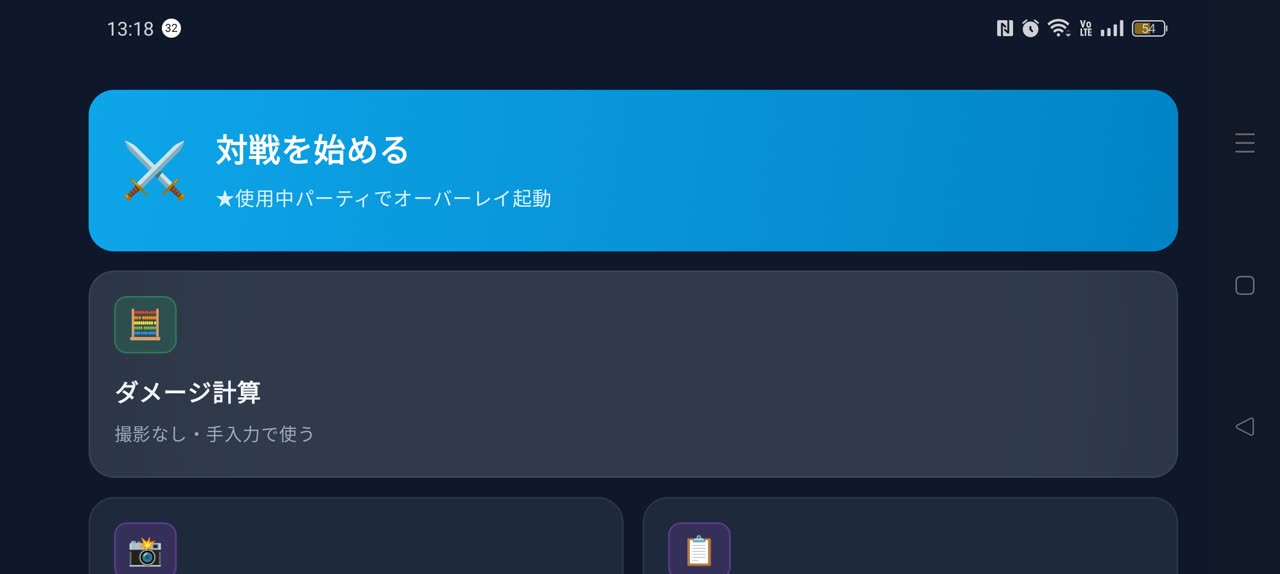
3. Type it inDamage calculation by hand. No permissions, no capture. → section 04
This app and this guide are made by a fan and are not official Pokémon Champions products.
Reading happens on your device; an image is sent only if you report an error or agree to share screens you corrected.
01
First-time setup
Two Android permissions are needed before the panel can appear over the game. This is the one part that works differently from an ordinary app, so it is where people get stuck.
Recording: permission screen → settings → done
1. Allow "Display over other apps"
Without this the panel cannot appear over the game. Tapping Allow sends you to the system settings; scroll the app list, find this app, choose Always allow, then come back.
A bit more
Why this takes more steps than usual. Android treats this permission specially, because it lets an app cover what other apps are showing. An app cannot grant it in place — you always go out to the system settings.
If you turn it off later. Settings → Apps → this app → "Display over other apps" turns it back on at any time.
The app still works without it. You only lose the overlay. Manual damage calculation (section 04) is unaffected.
Screenshot: capture consent
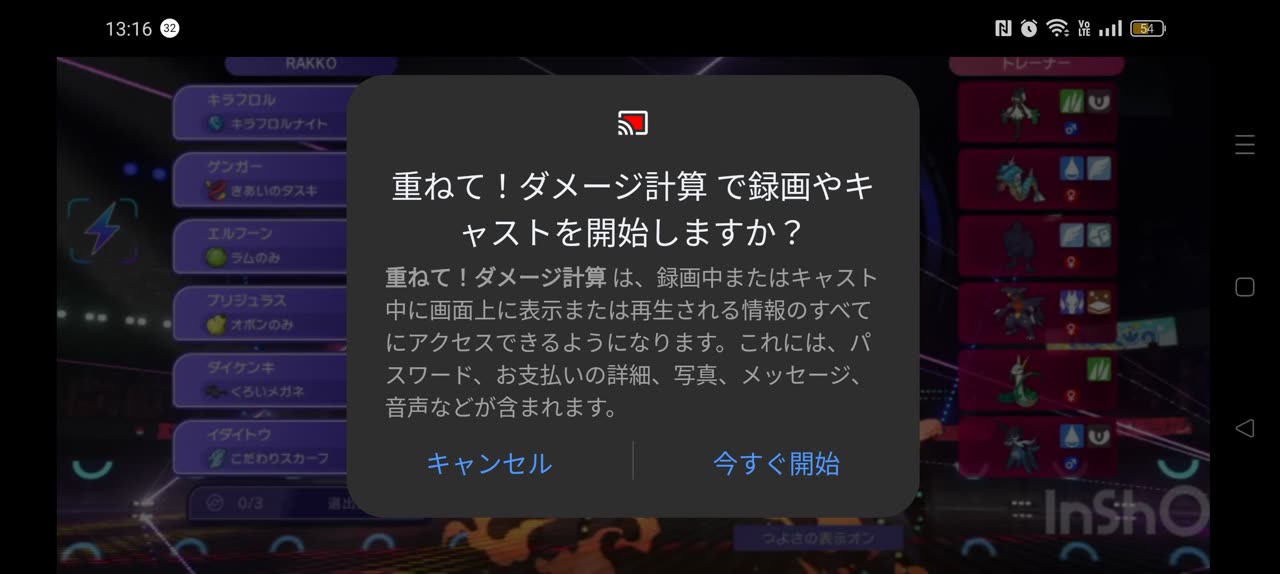
2. Allow screen capture
Reading the opponent's team needs permission to capture the screen.
Press a ● on the screen for an explanation of that part.
POINT 1 — Start now
Capture works from the moment you tap this. If you dismiss the dialog instead, tapping the capture button later does nothing.
POINT 2 — Asked every time
This dialog appears each time the app starts. The app cannot suppress it — that is Android's rule.
A bit more
Where the images go. Reading happens on the device. A captured screen is uploaded only when you report a reading error with “Report”, or when you have agreed to share screens you corrected (Wi-Fi only, and you can withdraw this in settings).
Why it asks every time. Screen-capture consent is granted once per session by design, so it has to be taken again after every restart. It is tedious, and there is nothing the app can do about it.
Orientation matters. The orientation you consent in becomes the reference for reading. If you play in landscape, rotate first, then consent.
02
Register your team
Registering your own six first means every calculation uses your real numbers. There are two ways to do it.
Screenshot: register from a capture
Option A: capture the status screen
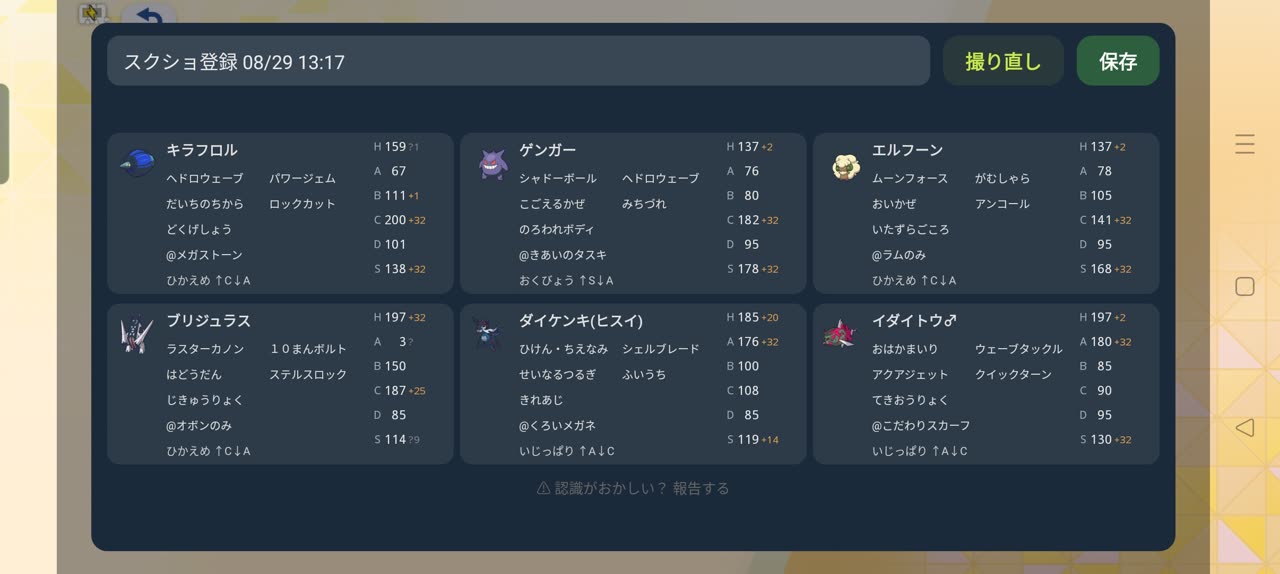
Capture the game's status screen and all six are read at once. Start from Register from screenshot on the home screen.
Press a ● on the screen for an explanation of that part.
POINT 1 — Retake / Save
You see the result before committing to it. Retake if it looks wrong; save if it does not. Nothing is registered until you save.
POINT 2 — What gets read
Species, held item, ability, nature, moves and EVs. One field being wrong is possible, so glance over it before saving.
A bit more
A nickname stops the name being read. This is the most common reason a slot comes back blank. Tap the empty slot and pick the right one — everything else on that slot is still read correctly.
Anything that fails can be fixed by hand afterwards. If retaking keeps failing at the same field, editing it directly is quicker.
Some devices struggle. Unusual screen shapes — foldables, tablets, emulators — can throw the reading off. Option B is reliable there.
Screenshot: import from text
Option B: paste text
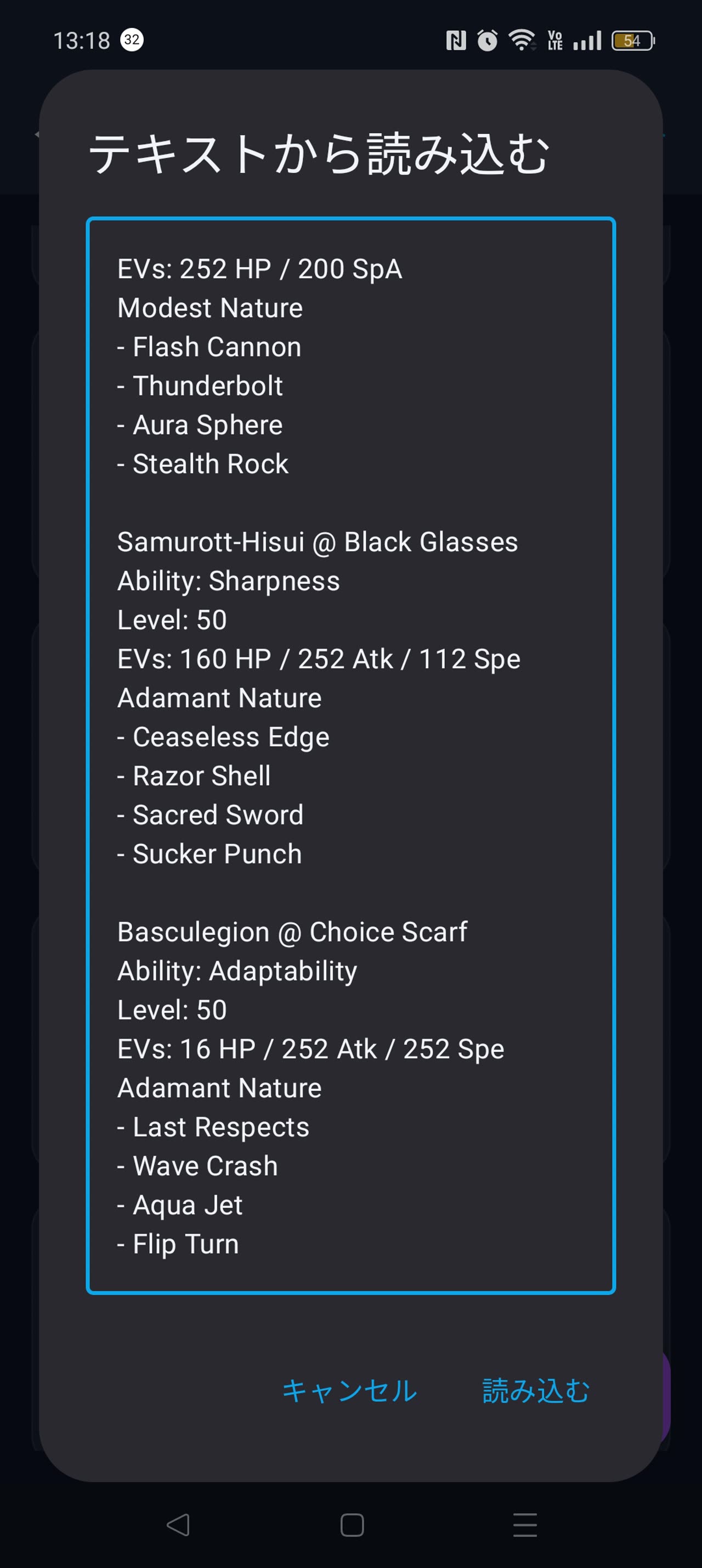
Paste a team in the format battle simulators use and it registers directly. No capture involved, so it always works. Export works too, if you want to take a team elsewhere.
A bit more
All six at once. There is no need to enter them one at a time.
This is the reliable path on devices where reading fails. It does not depend on screen shape or resolution, so the result is the same everywhere.
03
Read the opponent
Capture the team-preview screen and the opponent's six appear. If one is wrong, you can fix it right there — a feature plenty of people never find.
Recording: opening the panel
1. Open the panel
Start a battle on the home screen puts the panel over the game. Go back to the game and play as usual — the panel folds away when you do not need it.
A bit more
Pick a team first. The panel opens with your active team. If you have not registered one yet, do section 02 first.
The panel moves and folds. Fold it when it is in the way; folding does not lose what you have entered.
Screenshot: capturing team preview
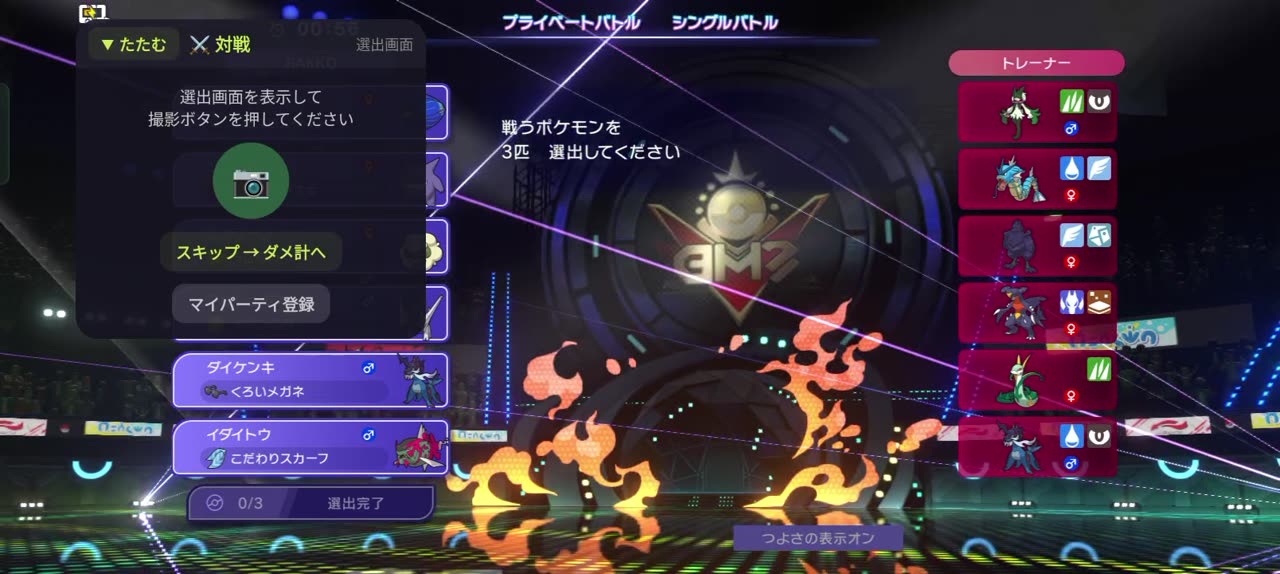
2. Capture on the team-preview screen
Capture while the opponent's six are on screen. Reading takes a second or two.
Press a ● on the screen for an explanation of that part.
POINT 1 — What to capture
Capture with all six visible. Anything covered cannot be read.
POINT 2 — Skip the capture
You can go straight to damage calculation without reading anything, and enter the opponent by hand.
A bit more
What it actually looks at. The artwork of each of the six, matched against data on the device. It does not read the game's network traffic.
Which is why appearance matters. Shinies are harder to read, and lookalikes get mixed up. The next step fixes both.
Recording: six read, then correcting the fifth
3. Tap anything that is wrong
Reading is not perfect, and one slot being wrong does happen. Tap the wrong slot and it cycles through the other candidates. If the right one does not come up, pick it by hand — you can filter by name.
A bit more
Corrections carry through everything. Damage calculation and matchup analysis are rebuilt from the corrected six. There is no need to capture again.
Correcting costs nothing. Fix as many as you like (section 08).
You choose whether your corrections are shared. By default, captured images do not leave your device.
04
Damage calculation
The heart of the app. Use it over the game, or open it on its own without capturing anything.
Recording: calculating over the game
Over the game
You are on the left, the opponent on the right. Pick a move and the middle shows the damage range and how many hits it takes. Items, abilities, weather and status go in from + item / ability / burn / weather underneath.
A bit more
Reading the numbers. "95.8% − 112.7%" is the minimum and maximum roll. The figure above it is the chance of a one-hit KO. A "2" marker means two hits always finish it.
Swap sides. One button flips attacker and defender, so you can see both directions before choosing a lead.
The speed tab. Compares who moves first, including items and stat changes, with a row for the assumption that the opponent is holding a Choice Scarf.
Selection is a drum roll. Spin it vertically; the value is set where you lift your finger. Small nudges are often quicker than a hard flick.
Screenshot: opening it without capturing
On its own, with no permissions
Damage calculation — type it in, no capture on the home screen opens just the calculator.
Press a ● on the screen for an explanation of that part.
POINT 1 — Open it here
No overlay permission, no screen capture. This works on every device, including the ones where reading does not.
A bit more
Portrait or landscape. Hold it whichever way suits — one-handed in portrait, or landscape alongside a battle.
The dependable path. Nothing here depends on screen shape or resolution.
05
Matchup analysis
Available once the opponent's six have been read. This is the screen for deciding who to bring.
Screenshot: the matchup grid
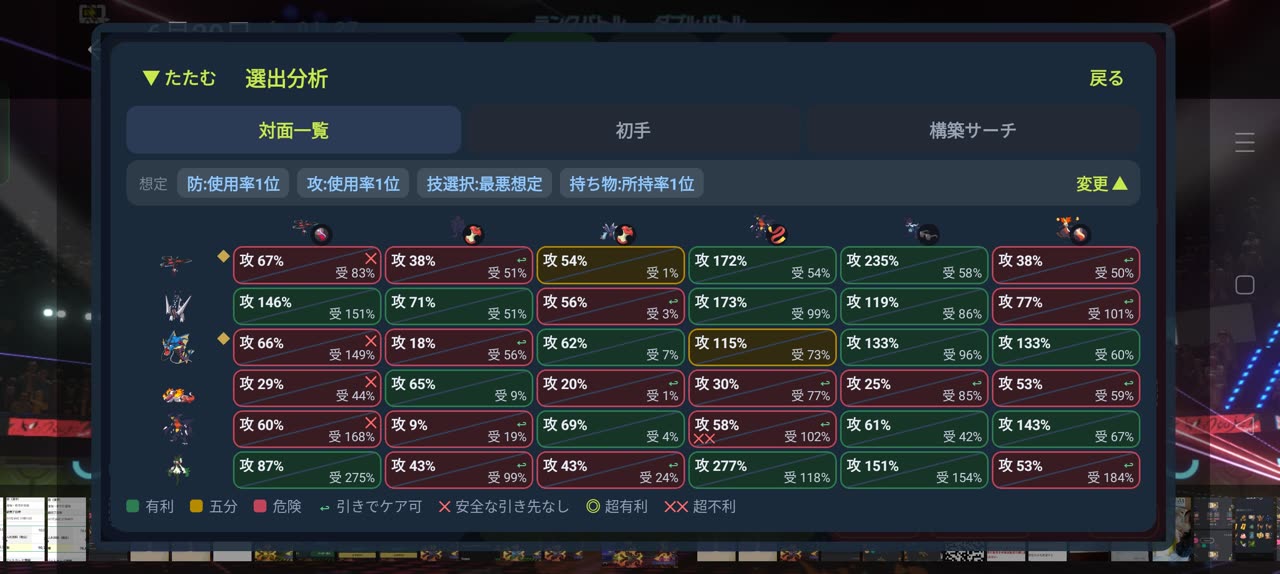
Every matchup at once
All thirty-six pairings between your six and theirs. The stronger the colour, the better it is for you.
Press a ● on the screen for an explanation of that part.
POINT 1 — Reading a cell
Top figure is damage you deal, bottom is damage you take. Tap for the full breakdown of that pairing.
POINT 2 — The assumptions
The opponent's items, abilities and EVs are unknown, so the most common spread is assumed. Tap here to change what is assumed.
A bit more
This is calculation, not prediction. It is not guessing the opponent's build — it lays out what follows from a stated assumption. Change the assumption and the numbers change.
Worst case or likely case. You can switch between assuming the opponent picks their most damaging move and assuming they pick what is usually picked. Worst case is the default.
Screenshot: the lead tab
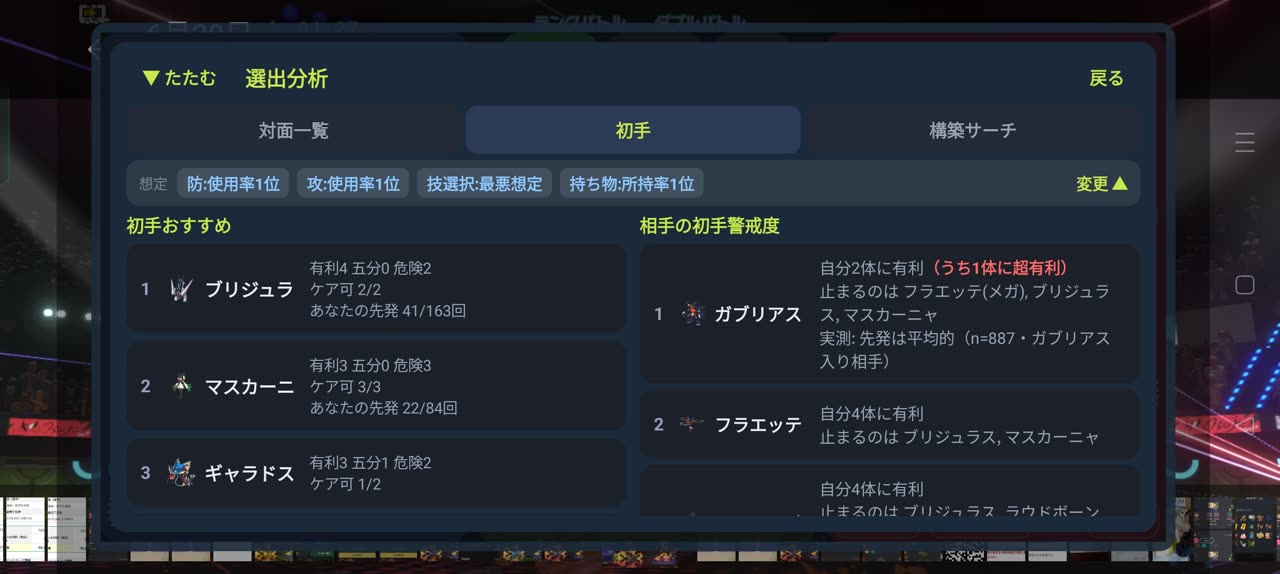
Choosing a lead
Rather than reading the whole grid, this ranks who to send out first.
Press a ● on the screen for an explanation of that part.
POINT 1 — Suggested leads
How many of the opponent's six each of yours beats, against how many it loses to.
POINT 2 — Their likely lead
Which of theirs is most likely to come out first, and which of yours answers it.
A bit more
Not ranked on wins alone. Whether the win is clean, how much you get chipped, and who moves first all feed into the order.
Finish here and go straight to the calculator with the three you picked.
06
Team search
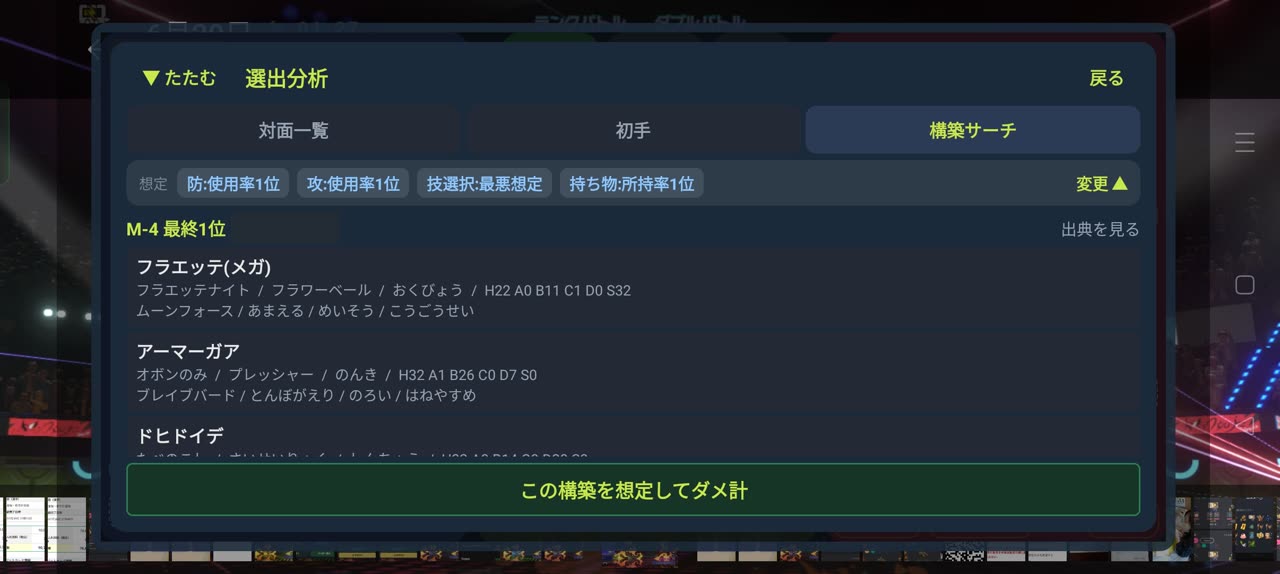
Appears only when the opponent's six exactly match a team published from a past season. When it does, you get their items, abilities, natures, EVs and moves.
Screenshot: a match
The tab only appears on a match
All six have to match. Most battles will not produce one — so when it does appear, the information behind it is unusually solid.
Press a ● on the screen for an explanation of that part.
POINT 1 — Which team
The season and final placing. If several players brought the same six, you get a list.
POINT 2 — Use this build
Loads that build onto the opponent's side of the calculator. Looking costs nothing.
A bit more
Where the data comes from. Articles published after a season ends, collected and bundled into the app. Nothing is fetched mid-battle.
Which is why the current season is missing. Those articles only appear once a season is over. New seasons are added afterwards.
Rule changes do not invalidate them. A ruleset change adds to the pool rather than removing from it, so builds from earlier seasons are still things an opponent could be running. What does get less certain is the held item, because there are now more of them to choose from. Builds from a different ruleset are labelled as such.
You choose which seasons count. Settings → "Seasons used by team search" lets you drop older ones. All are included to begin with.
07
Battle records
Log a battle when it ends. Over time it shows which of your teams beats what.
Recording: from "Log this battle" to the record screen
From "Log this battle" in the calculator
Result, your three, their three, a note and a rating band. The six already read carry over, so in practice you only enter the result.
A bit more
Editable afterwards. Long-press a record to edit it — result, opponent name, note, format and rating band can all be changed later.
08
Ads and uses left
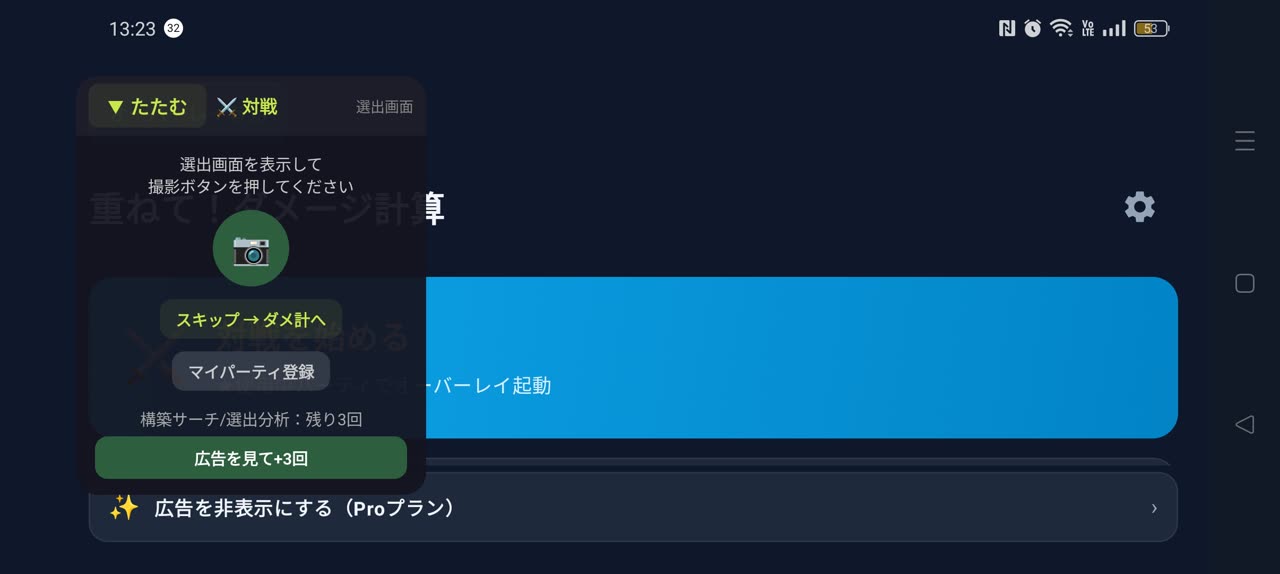
An ad is offered now and thenAfter a number of calculations. "Later" defers it, though only so many times in a row. Nothing to keep track of.
Three features spend "uses left"Team search, matchup analysis, and loading a published team. The screen shows uses left. One ad gives +3
Screenshot: uses left
Only three things spend a use
Damage calculation, registering a team, reading the opponent, correcting it and logging battles never spend a use.
Press a ● on the screen for an explanation of that part.
POINT 1 — Uses left
How many are available. One per battle, and reopening the same screen does not spend another. At zero, the button simply does not proceed — nothing is broken.
POINT 2 — Watch an ad for +3
One ad adds three. You do not have to be in a battle.
A bit more
1. Matchup analysis (the grid and the lead tab are one use between them) 2. Team search 3. Loading a published team Each is counted separately.
Within one battle, reopening is free. Closing and reopening a screen, or correcting a slot, does not spend anything.
Two ways to top up. One ad gives +3. Using the calculator three days running gives 5 a day.
The Pro plan removes the counting. Ads go away too.
Buying "Support the developer" unlocks nothing. No uses, no ad removal. It is purely a tip.
09
When reading fails
Work down this list in order.
1. Did the app just update?
A panel left open across an update keeps running the old version. If nothing at all is read (0 of 6), close the panel and open it again from the app.
2. Is the orientation different from when you consented?
Reading uses the orientation you consented in as its reference. Consenting in portrait and then playing in landscape throws it off. Rotate first, then consent again.
3. A wrong result can be corrected
Tapping a slot cycles through the other candidates. If the right one does not appear, set it by hand (section 03).
4. Some devices simply struggle
Unusual screen shapes — foldables, tablets, emulators, small screens — can defeat the reading. Use the standalone calculator in section 04 and Option B in section 02; neither depends on the device.
Still stuck?
Send a report from Feedback on the home screen. Knowing your device and what was on screen lets us track the cause down.